Dublin Kia
I. Pre-Invoicing Overview
What is Pre Invoice Posting
Posting open invoices in accounts payable means recording unpaid vendor bills in the accounting system to track them until payment is made.
The Payables Clerk is responsible for:
1. Validate invoice accuracy
2. Ensure invoices and amounts are recorded to the correct General Ledger (GL) accounts
3. Ensure all postings and system entries comply with the store-specific guidelines
4. Post to the correct accounting period
5. Prevent duplicate posting
6. Post invoices on time
Pre-Invoice Posting Process:
7. Receive Invoice – Confirm the invoice has been received and uploaded into Tekion.
8. Validate Invoice Accuracy - Ensure the uploaded invoice in Tekion is accurate by verifying it against the corresponding PO. Confirm that amounts, vendor details, and all other information match.
9. GL Account Assignment – Assign invoices and amounts to the correct General Ledger (GL) accounts based on the department’s instructions on the invoice.
10. JE Posting Lines Completion – Fill in all required JE fields (Control 1, Control 2, Description) according to store-specific posting guidelines.
11. Correct Book/Period Posting – Ensure the invoice is posted in the correct accounting book and assigned to the proper accounting period.
12. Duplicate Check – Verify the invoice has not already been posted to prevent double payment.
13. Timely Posting – Complete posting in time to meet payment deadlines.
Why it Matters?
14. Ensures Accuracy – Verifying invoices and completing journal entry lines correctly prevents errors in financial records.
15. Proper Account Recording – Assigning invoices to the correct GL accounts ensures expenses and liabilities are recorded accurately.
16. Compliance with Guidelines – Adhering to store-specific posting procedures maintains internal controls and standardization.
17. Correct Financial Period Reporting – Posting to the appropriate book and period ensures transactions appear in the correct accounting period.
18. Prevents Duplicate Payments – Checking for duplicates avoids double payments and safeguards company funds.
19. Timely Payments – Posting invoices promptly ensures vendors are paid on time, supporting good vendor relationships and accurate cash flow management.
Key Components of a Pre Invoice Posting
Category | Details |
Invoice Information | Records the invoice number, invoice date, and total amount. |
Vendor Information | Identifies the vendor and verifies the profile in Tekion. |
Invoice Verification / Identification | Confirms that the invoice is complete, valid, acceptable to be posted, and not duplicated. |
Invoice Type / Department | Specifies which department the invoice belongs to. |
Invoice Type – Debit/Credit | Indicates whether the invoice is a debit or credit. |
RO / Stock Number Linking | Links to the invoice to a Repair Order or stock number, if applicable. |
PO / Pre-Authorization | References the PO and verifies that it matches the invoice and department approval. |
GL Codes / Expense Accounts | Assigns the correct GL account and includes Control Accounts, GL numbers, and descriptions for JE posting. |
Accounting Date | Determines the date the invoice is recognized in the ledger. |
Invoice Status | Shows the current stage of the invoice (pre-invoice, not yet posted). |
Notes / Comments | Records of discrepancies, follow-ups, or special instructions. |
Productivity Tracker | Repository logs of completed pre-invoice posting tasks, including assigned to, date extracted, number of invoices processed, a list of pending items to follow up on, and the reason category for each pending item. Used for monitoring and reporting. |
Locating Pre Invoices in Tekion
Step 1: Log in to Tekion
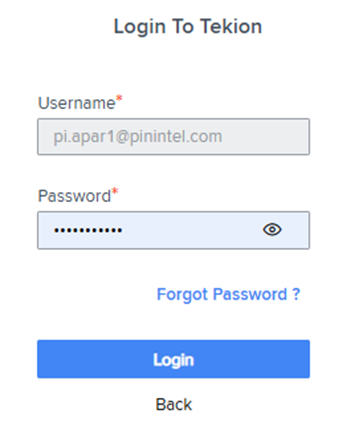
Open Tekion and enter the AP credentials provided for your specific store.
Note: Individual user access is not yet configured; use the shared store credentials.
A verification code will be sent to your registered device/email. The code expires in 45 seconds.
1.

Step 2: Access the waffle menu
Click the waffle menu in the top-left corner of Tekion.

2.1 Go to the Accounts Payable folder and select Vendor Invoices.


2.2 On the Vendor Invoices screen, invoices are displayed in various statuses. Locate the Status menu near the top center of the screen and select ‘Pre-Invoiced’ from the drop-down. The system will then show only the invoices that are ready for review and posting.
This screen will allow you to see PRE-INVOICED invoices, posted in accounting, not paid invoices OPEN, as well as VOIDED or CLOSED invoices.

2.3 Once located, the pre-invoices can be extracted to the productivity tracker for posting (covered in
the next section).

Posting “Pre-Invoices” in Tekion
Pre-Invoicing - Invoice Validation
Posting open invoices in accounts payable means recording unpaid vendor bills in the accounting system to track them until payment is made.
Clicking on the invoice will bring you to the posting screens. Here you will validate the ff:
Reviewing Uploaded Invoices
Verify Correct Invoice Attachment
The uploaded document is the official vendor invoice for the store that you are posting it to.
The document is not a quote, statement, receipt, or any non-invoice document.
Check for Duplicate Invoice
Search in Tekion using the vendor's name and invoice number. Confirm the invoice has not already been posted in the system.
Invoice Details and Tekion Data Matching
Review the invoice to ensure all required information is present and matches the data entered in Tekion.
Ensure account is under the correct Store/Dealership.
Verify the document matches the Purchase Order?
Does the invoice match the Payee Vendor Name?
Verify the document matches the Invoice number?
Verify the Invoice Date and Invoice Amount on the document is showing correctly?
Lastly is the AP GL Account correct
300 is payables
300R is sister stores (intercompany or related stores)
Important: Always review the Notes/Memo written on the Invoice.
Screenshot 1 - Tekion Information

Screenshot 2: Invoice Information

Screenshot 3: Memo Information

Sample Cross Checking
Important fields to validate and match
PO Number: Confirm the Purchase Order number on the invoice matches the PO in Tekion.
Amount: Verify the invoice amount equals the PO amount and matches the vendor’s invoice.
Vendor Name: Ensure the vendor name on the invoice matches the vendor record in Tekion.
Invoice Number: Confirm the invoice number is correct and unique (not a duplicate).
Invoice Date: Verify the invoice date is accurate and corresponds with the invoice document.
AP GL Account: Select the appropriate Accounts Payable General Ledger account based on the transaction.
Invoice Due Date: Enter the invoice payment due date, as specified on the invoice or according to payment terms.
Reference - Invoice Sample for Cross Checking
Reference A

Reference B

Upon validation, click NEXT.
Note: If there is a discrepancy/mismatching of the details, we will put a note on that invoice and send an email.
Prev-Invoicing - Journal Data Entry
This is where you will verify that the accounting is accurate. Once all matching fields are verified, complete the following fields in Tekion before posting.
Filing out the Description Field
Open the Journal Entry (JE) screen
Locate the Description field
On the posting line, hover over the Information icon within the control box.
Copy the vendor information displayed.
Paste the vendor information into the Description field.
Verify that the information is correctly spelled and accurately pasted into the field before proceeding.

Filing out the Accounting Date
Enter today’s date as displayed (U.S.-based) or select the highlighted date from the calendar.

Important Details on the Journal Entry - Transaction Lines
List of Posting Lines
GL Account: Represents the specific GL code associated with the invoice or STAMP. For subsequent lines, it reflects the detailed GL allocation.
Amount: Shows the value of the line item as indicated on the invoice or according to instructions. When an invoice has multiple breakdowns allocated to different GL codes, each amount is recorded on a separate row of the posting line following the provided instructions.
Control 1: Sometimes provided directly on the invoice. Most of the time, determining the Control relies on the type of expense, guided by the Cheat sheet, Chart of Accounts, and internal guidelines.
Control 2: Provides a general description of the item or expense category. This information may already appear on the invoice. For certain GL codes, if Control 1 is the vendor's name, Control 2 may also reflect the vendor's name. The value is guided by the type of expense, GL Code Cheat sheet, and internal guidelines.
Description: Details the specific nature of the expense, reflecting the information on the invoice or the billing coverage if it is a recurring/monthly expense. This is also guided by the type of expense, GL Code Cheat sheet, and internal guidelines.

Steps on Filing out the Journal Entry - Transaction Lines
Review the invoice to identify the appropriate GL account. The GL account may be indicated on the stamp or written/coded directly on the invoice.
Reference # 1

The coding is not limited to one GL account. An invoice may be broken down into multiple GL codes, with the total amount divided accordingly based on the provided instructions.
From the drop-down menu, select the GL code that matches the invoice coding, then enter the amount to be allocated to that GL code.
References # 2 & 3

Completing Information by Entering details in Control 1 and Control 2 - Sections
Ensure all Control 1, Control 2, and Description fields are accurately completed according to the Cheat Sheet and Chart of Accounts before posting the transaction.”
Reference #4

Note: The completion of posting lines—including Control 1, Control 2, and Description fields—is governed by the Cheatsheet and the Chart of Accounts. Revisions to this document are reflected in the corresponding source documents and links.
Posting the Journal Entry - after completing Transaction Lines
After ensuring all details were accurate on the Tekion entry and follow1ing the cheat sheets provided per store. You can start posting the Pre-Invoice by clicking the “Post Transaction Button”
You can now see the invoices posted and ready to pay. From the VENDOR INVOICES page, select OPEN under status. These invoices are all ready to be paid.
Important: Please refer to the expense account cheat sheet for questions. Upon approving POST TRANSACTION.
Reference 1

Reference 2

II. Direct Payment Overview
What is Direct Payment Posting
A manual entry invoice would be for items that don’t get a PO. Usually, these are items like water bills, electricity, and garbage bills. We get manual entry invoices from the same/different vendor multiple times a month.
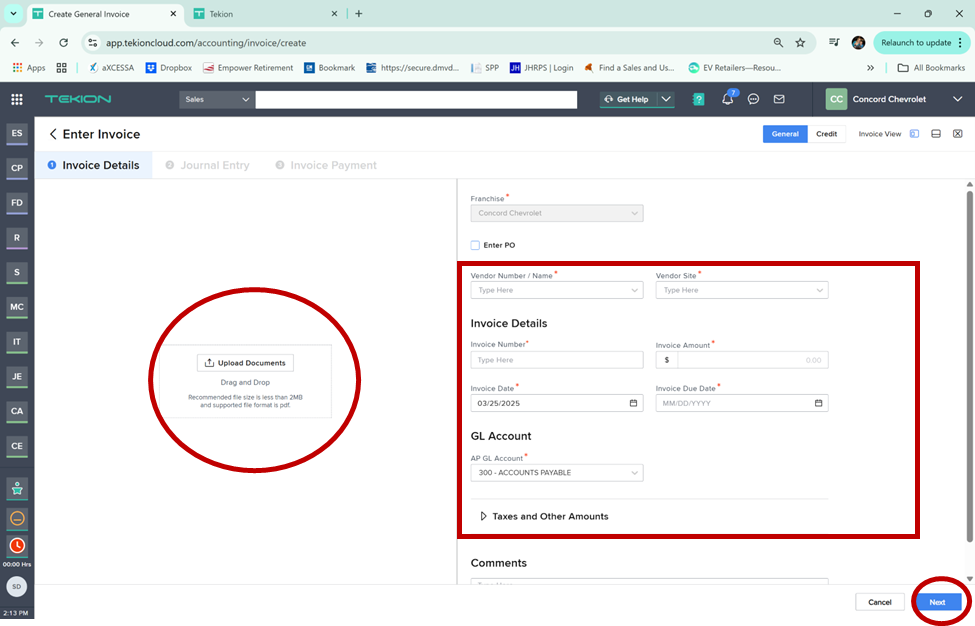
Here you will add the document by using the upload feature or drop and drag feature. Then you will add the vendor’s name, invoice number, dollar amount, date, and verify what is written for you on the invoice[JW1] . And click NEXT
The Payables Clerk is responsible for:
1. Uploading/Adding Invoice Documents
2. Validate invoice accuracy
3. Ensure invoices and amounts are recorded to the correct General Ledger (GL) accounts
4. Ensure all postings and system entries comply with the store-specific guidelines
5. Post to the correct accounting period
6. Prevent duplicate posting
7. Post invoices on time
Direct Payments Invoice Posting Process:
8. Receive Invoice – Locate the invoice sent to the Group email for the specific store.
9. Validate Invoice Accuracy -
10. Confirm the invoice has the required approval and signature
11. Check that amounts, vendor details, coding, and all necessary information are correct for posting.
12. GL Account Assignment – Assign invoices and amounts to the correct General Ledger (GL) accounts based on the department’s instructions/coding on the invoice.
13. JE Posting Lines Completion – Fill in all required JE fields (Control 1, Control 2, Description) based on the invoice coding or store-specific posting instruction.
14. Correct Book/Period Posting – Ensure the invoice is posted in the correct accounting book and assigned to the proper accounting period.
15. Duplicate Check – Verify the invoice has not already been posted to prevent double payment.
16. Timely Posting – Complete posting in time to meet payment deadlines.
WHY IT MATTERS?
17. Ensures Accuracy – Verifying invoices and completing journal entry lines correctly prevents errors in financial records.
18. Proper Account Recording – Assigning invoices to the correct GL accounts ensures expenses and liabilities are recorded accurately.
19. Compliance with Guidelines – Adhering to store-specific posting procedures maintains internal controls and standardization.
20. Correct Financial Period Reporting – Posting to the appropriate book and period ensures transactions appear in the correct accounting period.
21. Prevents Duplicate Payments – Checking for duplicates avoids double payments and safeguards company funds.
22. Timely Payments – Posting invoices promptly ensures vendors are paid on time, supporting good vendor relationships and accurate cash flow management.
KEY COMPONENTS OF A DIRECT PAY INVOICE POSTING
Category | Details |
Invoice Information |
Records the invoice number, invoice date, and total amount. |
Vendor Information |
Identifies the vendor and verifies the profile in Tekion. |
Invoice Verification / Identification |
Confirms that the invoice is complete, valid, acceptable to be posted, and not duplicated. |
Invoice Type / Department | Specifies which department the invoice belongs to. |
Invoice Type – Debit/Credit |
Indicates whether the invoice is a debit or credit. |
RO / Stock Number Linking
| Links to the invoice to a Repair Order or stock number, if applicable. |
PO / Pre-Authorization |
References the PO and verifies that it matches the invoice and department approval. |
GL Codes / Expense Accounts
| Assigns the correct GL account and includes Control Accounts, GL numbers, and descriptions for JE posting.
|
Accounting Date
| Determines the date the invoice is recognized in the ledger.
|
Invoice Status
| Shows the current stage of the invoice (pre-invoice, not yet posted).
|
Notes / Comments
| Records of discrepancies, follow-ups, or special instructions.
|
Productivity Tracker | Repository logs of completed pre-invoice posting tasks, including assigned to, date extracted, number of invoices processed, a list of pending items to follow up on, and the reason category for each pending item. Used for monitoring and reporting. |
Posting Manual Entry in Tekion
Step 1: Log in to Tekion
Open Tekion and enter the AP credentials provided for your specific store.
Note: Individual user access is not yet configured; use the shared store credentials.
A verification code will be sent to your registered device/email. The code expires in 45 seconds.

Step 2: Access the waffle menu
2.1 Click the waffle menu in the top-left corner of Tekion.
2.2 Go to the Accounts Payable folder and select Vendor Invoices.

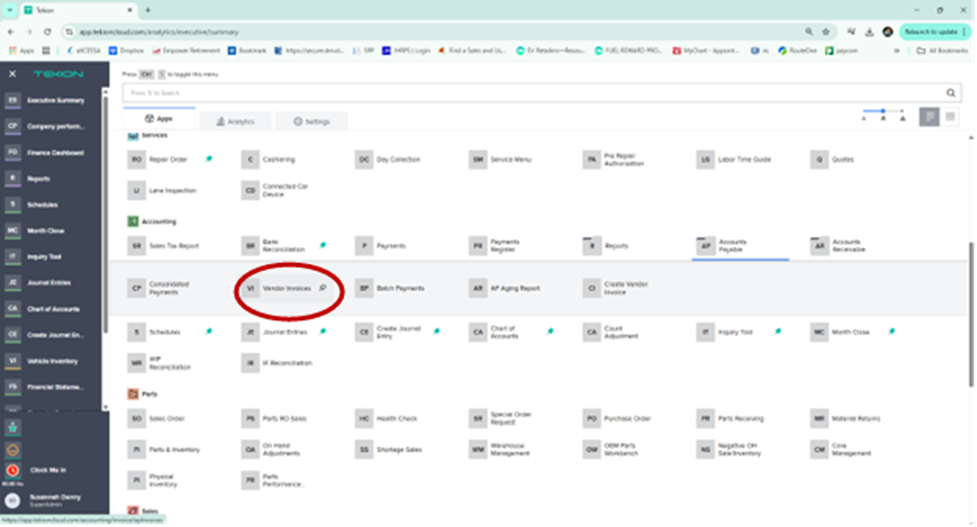
2.3 On the Vendor Invoices screen, invoices are displayed in various statuses.
Processing Direct Payment in Tekion
Part 1 - Creating Invoice
1. Locate the Status menu near the top right corner of the screen and click the ‘Create-Invoice.

Part 2 - Uploading Invoice
2.4 Here you will add the document by using the upload feature or drop and drag feature.
2.5 Once you have identified the correct invoice type, click “Upload Document” in Tekion to proceed. Make sure the file is readily available on your desktop and carefully select the correct attachment before uploading.

2.3 Once the document has been uploaded, you will see an interface like the example below, where the intended invoice appears in the “Invoice Details” section on the left-hand side of Tekion.

Validating the Invoice Source Document in Tekion
Part 1 – Invoice Sources Overview
Direct payment invoices are sent to the store group email by the Controller and DAC. The Accounts Payable Clerk retrieves these invoices and manually uploads them into Tekion, posting them with the correct account codes and completing the necessary fields on the JE posting line. Typically, the Controller and DAC pre-code the invoices, and the payables team is expected to follow the provided coding.

Part 2 – Document Type Overview
Important Reminders:
· Make sure you choose the correct type before proceeding with the upload. E.g. PDF
· Pay close attention to the type of invoice before uploading it to Tekion.
Part 3 - Journal Data Entry
This is where you will verify that the accounting is accurate. Once all matching fields are verified, complete the following fields in Tekion before posting.
Invoice Balance Conditions:
· Condition 1: If it is a regular invoice, select General (Debit - positive amount)
· Condition 2: If it is a credit memo, select Credit.
Review Condition 1
Condition 1 – Regular Invoice (Debit)
If you are creating a manual entry for a regular invoice, the interface shown below is what you will see.
This is the standard Tekion interface for a regular invoice.

Condition 2 – Expense Invoice (Credit)
If you are creating a manual entry for a credit, the interface shown below will display “Credit.”
This is the standard Tekion interface for a expense invoice.

Filing out the Description Field
Open the Journal Entry (JE) screen
Locate the Description field
On the posting line, hover over the Information icon within the control box.
Copy the vendor information displayed.
Paste the vendor information into the Description field.
Verify that the information is correctly spelled and accurately pasted into the field before proceeding.
Reference # 1 - 2

Filing out the Accounting Date
Enter today’s date as displayed (U.S.-based) or select the highlighted date from the calendar.

Important Details on the Journal Entry - Transaction Lines
List of Posting Lines
GL Account: Represents the specific GL code associated with the invoice or STAMP. For subsequent lines, it reflects the detailed GL allocation.
Amount: Shows the value of the line item as indicated on the invoice or according to instructions. When an invoice has multiple breakdowns allocated to different GL codes, each amount is recorded on a separate row of the posting line following the provided instructions.
Control 1: Sometimes provided directly on the invoice. Most of the time, determining the Control relies on the type of expense, guided by the Cheat sheet, Chart of Accounts, and internal guidelines.
Control 2: Provides a general description of the item or expense category. This information may already appear on the invoice. For certain GL codes, if Control 1 is the vendor's name, Control 2 may also reflect the vendor's name. The value is guided by the type of expense, GL Code Cheat sheet, and internal guidelines.
Description: Details the specific nature of the expense, reflecting the information on the invoice or the billing coverage if it is a recurring/monthly expense. This is also guided by the type of expense, GL Code Cheat sheet, and internal guidelines.

Steps on Filing out the Journal Entry - Transaction Lines
Review the invoice to identify the appropriate GL account. The GL account may be indicated on the stamp or written/coded directly on the invoice.
Reference # 1

The coding is not limited to one GL account. An invoice may be broken down into multiple GL codes, with the total amount divided accordingly based on the provided instructions.
From the drop-down menu, select the GL code that matches the invoice coding, then enter the amount to be allocated to that GL code.
References # 2 & 3

Completing Information by Entering details in Control 1 and Control 2 - Sections
Ensure all Control 1, Control 2, and Description fields are accurately completed according to the Cheat Sheet and Chart of Accounts before posting the transaction.”
Reference #4

Note: The completion of posting lines—including Control 1, Control 2, and Description fields—is governed by the Cheatsheet and the Chart of Accounts.
Disclaimer: Revisions to this document are reflected in the corresponding source documents and links.
Please refer to the Chart of Accounts
Posting the Journal Entry - after completing Transaction Lines
After ensuring all details were accurate on the Tekion entry and follow1ing the cheat sheets provided per store. You can start posting the Pre-Invoice by clicking the “Post Transaction Button”
You can now see the invoices posted and ready to pay. From the VENDOR INVOICES page, select OPEN under status. These invoices are all ready to be paid.
Important: Please refer to the expense account cheat sheet for questions. Upon approving POST TRANSACTION.
Reference 1

Reference 2

III. Statement Recon Overview
RECONCILIATING THE STATEMENT
It is the process of matching a supplier’s statement with internal records to confirm that transactions are accurate and any discrepancies are resolved.
The Payables Clerk is responsible for:
· Reconcile all supplier statements received via email promptly and ensure they are attended in a timely manner. Confirm that no statement is overlooked and that each one is reconciled as soon as it is received.
· Ensure all invoices reflected on the supplier statement are accurately posted in Tekion and reconcile to the statement balance.
· If any invoices listed on the supplier’s statement are missing or have not been posted due to a discrepancy, notify the relevant parties to resolve the outstanding dependencies.
· Monitor aging of payables – Identify invoices approaching due dates that are not yet reconciled and escalate where necessary to prevent late payments.
STATEMENT RECONCILIATION PROCESS
· Retrieve the statement to be reconciled.
· Match each invoice on the statement to entries posted in Tekion.
· Identify discrepancies, missing invoices, or mismatched amounts.
· Document all discrepancies and gather supporting information.
· Reach out to the appropriate internal/external parties for resolution.
· Take corrective actions in Tekion or request adjustments as needed.
· Track pending issues and monitor them alongside the aging of payables.
· Verify that all discrepancies are resolved and update records for audit purposes.
WHY IT MATTERS?
Ensures that the total amount payable to vendors aligns with the invoices posted in our system, with each invoice accurately reflected and matching the breakdown on the vendor’s statement. This prevents discrepancies, confirms that payments processed correspond to the statement and supporting invoices, and ensures vendors are paid in a timely manner.
KEY COMPONENTS OF STATEMENT RECONCILIATION
Category | Details |
Invoice Source Invoice Information | Invoices are received from the store-specific group email, sent by the store controller. |
Vendor Information | Identifies the vendor and verifies the profile in Tekion. |
Invoice Verification / Identification |
Confirms that the invoice is complete, valid, acceptable to be posted, and not a duplicate.
|
Invoice Type / Department |
Specifies which department the invoice belongs to. |
Invoice Type – Debit/Credit |
Indicates whether the invoice is a debit or credit. |
RO / Stock Number Linking
| Links to the invoice to a Repair Order or stock number, if applicable. |
PO / Pre-Authorization
GL Codes / Expense Accounts
Accounting Date
Invoice Status
Notes / Comments
Productivity Tracker | References the PO and verifies that it matches the invoice and department approval.
Assigns the correct GL account and includes Control Accounts, GL numbers, and descriptions for JE posting.
Determines the date the invoice is recognized in the ledger.
Shows the current stage of the invoice (pre-invoice, not yet posted).
Records of discrepancies, follow-ups, or special instructions.
Logs completed pre-invoice posting tasks, including assigned to, date extracted, number of invoices processed, a list of pending items to follow up on, and the reason category for each pending item. Used for monitoring and reporting. |
Reconciliating Statements in Tekion
Step 1: Log in to Tekion
Open Tekion and enter the AP credentials provided for your specific store.
Note: Individual user access is not yet configured; use the shared store credentials.
A verification code will be sent to your registered device/email. The code expires in 45 seconds.
Step 2: Access the waffle menu
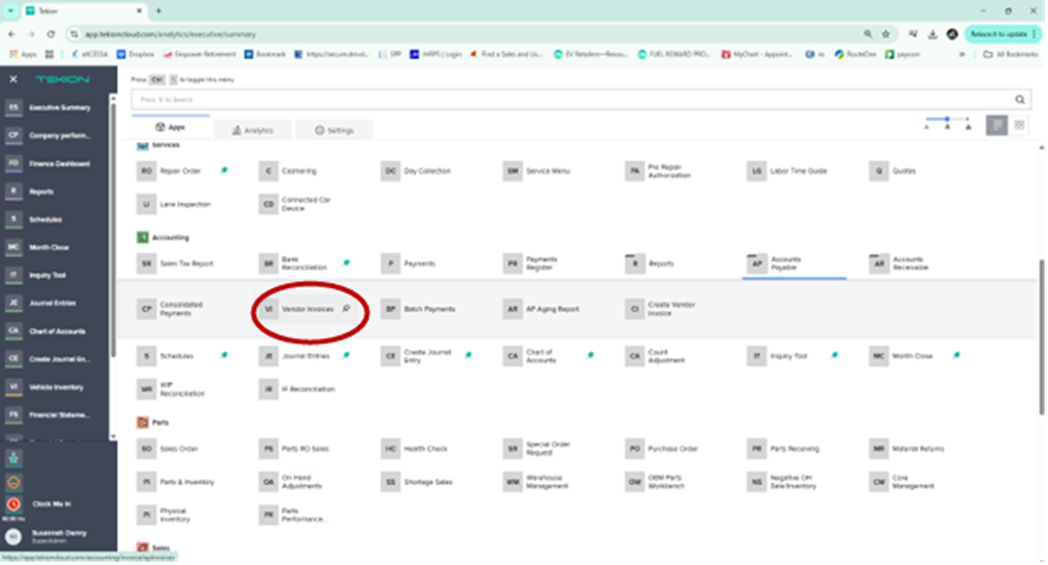
2.1 Click the waffle menu in the top-left corner of Tekion.

2.2 Go to the Accounts Payable folder and select Vendor Invoices.

2.3 On the Vendor Invoices screen, invoices are displayed in various statuses
This screen will allow you to see PRE-INVOICED invoices, posted in accounting, not paid invoices OPEN, as well as VOIDED or CLOSED invoices. Use the Vendor menu in the right-left top of the screen and select the vendor you need to reconcile.
Part 1 – Selecting Vendors
1.1 Locate the Status menu near the top right corner of the screen and click the ‘Select-Vendors’.
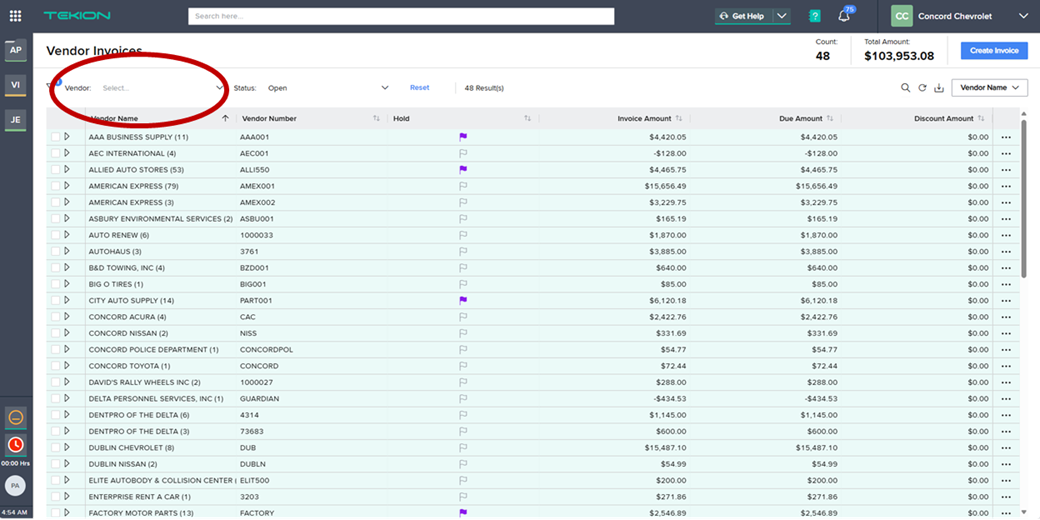
1.2 You can search for a vendor by typing their name, then select them by clicking the checkbox to filter the store list accordingly.
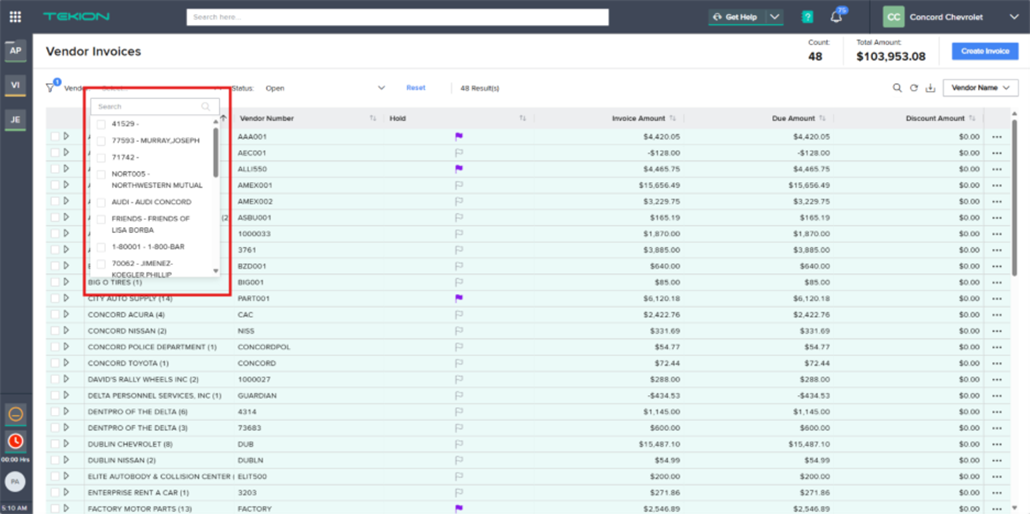
Part 2 – Filtering Invoices
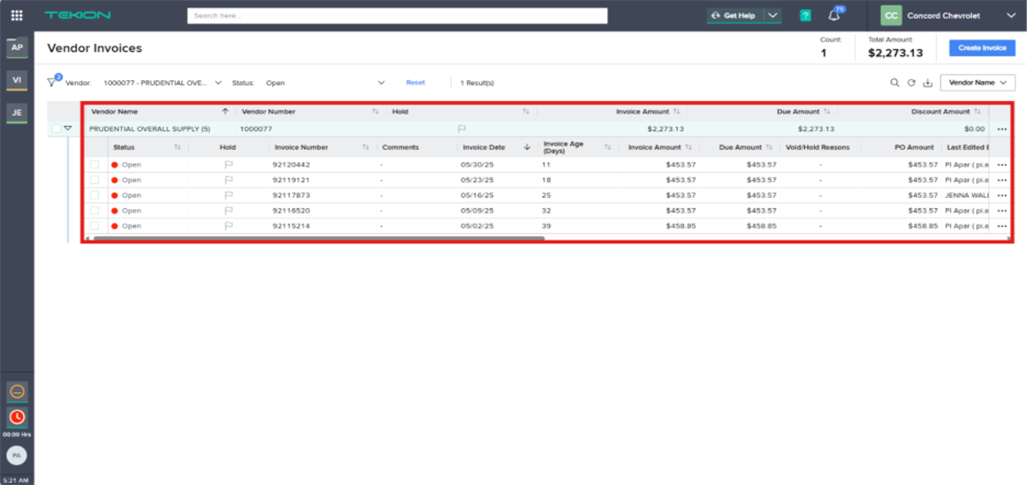
Once selected, click the arrow on the left part of Tekion and it will show all the invoices that were posted.
These posted invoices should match the statement that the vendor sent.

Part 3 – Sorting Invoices
3.1 Here you will see the list of Invoices of the Vendors you’ve selected. You can sort the invoices according to Invoice Date on the report view where the Invoice Date field is located.
3.2 Set the Invoice Date “arrow” to an descending chronological hierarchy, ensuring records appear from the newest to the oldest
Part 4 – Verify Vendor Invoice
4.1 Collect and summarize the Vendors Statement. Verify Vendor Information and check Vendors name matches company/system records. E.g. Ned R. Healy, INC. As additional reference, use previous month’s copy of invoices prior reconciliation. Compare and check details such as Billing Period, Invoice Date/Month.


Part 5 – Reconcile Balances
Reviewing Invoice Information
5.1 Confirm and review each month’s Invoices number and date if valid and correct and make sure they follow standard format, validate if there are inconsistencies on the pattern sequence on numbering. E.g. prefix and suffix, duplicates record, void or revised bill.
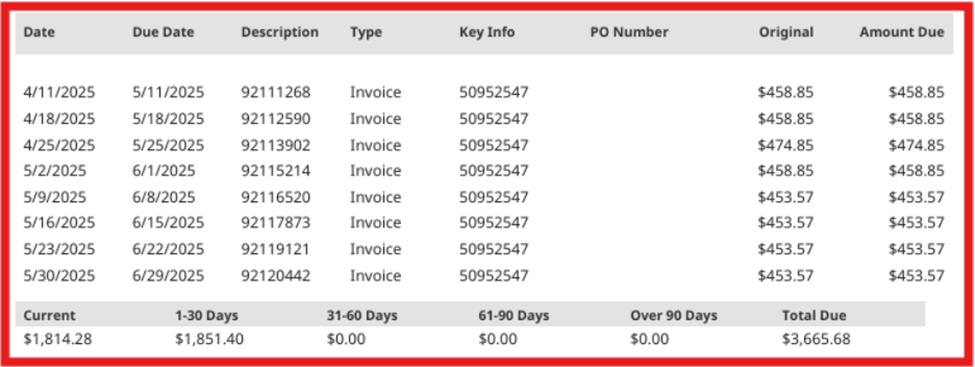
5.2 Match Invoice to Supporting Documents. Perform 3-way match (if possible – Invoice Date/PO Number, Statement Records, Receipt or Proof. Verify all data aligns across the documents
5.3 Check previous balances or credits, confirm whether
· Outstanding balances from past invoices exist
· Vendor credits or adjustments need to be applied.
· Payments from previous month were posted correctly.

5.4 Validate the Billing Period
· Ensure the invoice covers the correct month and:
· No overlapping billing dates exist
· No missing days or unbilled periods occur
5.5 Calculate and Confirm Totals – Recalculate the following to ensure it matches the Invoice. Make sure it matches the amount on the invoices.
· Invoice Amount
· Taxes and Other Discounts
· Adjustments or Other Charges
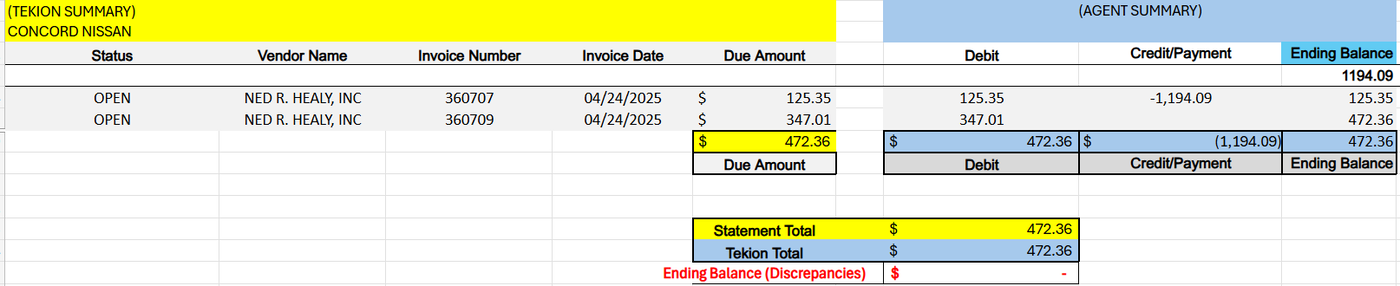
5.6 Flag any discrepancies. Document issues such as “Incorrect Pricing, Missing Documentation, Overbilling/Duplicate Billing. Communicate discrepancies to the vendor or purchasing team for correction.
Note: If there are misalignments, mismatches, or missing invoices, we reach out to the vendor.
While waiting for our parts team response/resolution, click the flag

icon beside the Vendor Name, this will be placed On Hold while waiting for a response

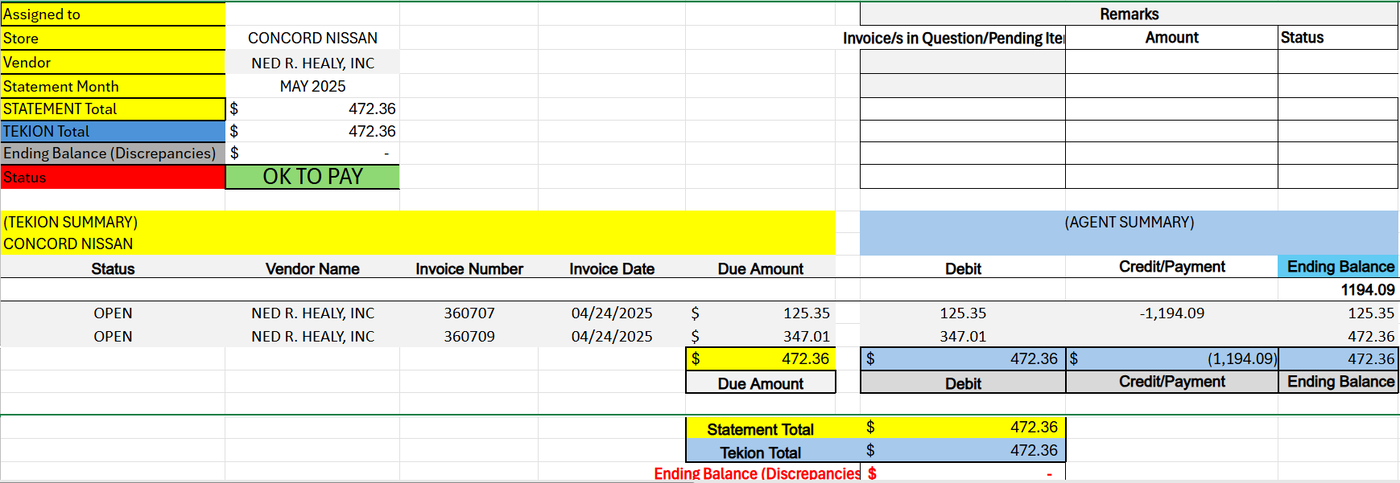
5.7 Once we confirm that the posted invoices match the statement that they’ve sent, we can proceed to payment for us to settle the balance due. Please see screenshot below – OK TO PAY which means the balance are the same “TEKION INV vs STATEMENT”
IV. Payables Run - Direct Process Overview
PAYABLES RUN – DIRECT PAY PROCESS
It is the scheduled process of issuing vendor payments. Direct pay (manual entry) invoices are paid every Thursday, with checks issued weekly and PO (purchase order) invoices, checks are issued only after the corresponding statements are balanced
This occurs in two phases: the first Thursday of the month and mid-month, around the 15th, for any remaining reconciled statements..
The Payables Clerk is responsible for:
1. Reviewing vendors scheduled for payment in each payables run.
2. Monitoring vendors with invoice discrepancies and following up to resolve issues before the scheduled check runs.
3. Coordinating with vendors and internal departments to clarify discrepancies and reconcile statements prior to payment.
4. Verifying the accuracy and completeness of invoices, vendor statements, and supporting documents.
5. Preparing approved payments and ensuring they are ready for check issuance.
6. Maintaining updated records of vendors scheduled for payment and tracking outstanding items requiring resolution.
DIRECT PAY PROCESS
7. Vendor submits a direct pay (non-PO) invoice.
8. The invoice is manually entered into the accounting system.
9. Payables Clerk reviews and verifies invoice details and supporting documents.
10. Discrepancies are identified and resolved by coordinating with vendors or internal departments.
11. Approved invoices are scheduled for the weekly Thursday payables run.
12. Payments are prepared and validated for accuracy and completeness.
13. Checks are issued to vendors during the scheduled check run.
14. Payment records are updated and tracked for documentation and monitoring of outstanding items.
WHY IT MATTERS?
The Direct Pay process ensures that vendor invoices are reviewed, verified, and paid accurately and on time. It helps identify and resolve discrepancies before payments are issued, preventing errors such as duplicate or incorrect payments. By maintaining proper verification and approval of expenses, the process supports accurate financial records and reporting. It also strengthens relationships with vendors by ensuring timely payments while improving overall efficiency and control within the accounts payable process.
We track accounts payable.
We indicate how much money is still due.
We coordinate for follow‑ups, reminders, and aging reports.
We identify delinquent accounts or potential issues.
KEY COMPONENTS OF PAYABLES RUN – DIRECT PAY (CONSOLIDATED PAYMENT)
Category | Details |
Invoice Source Invoice Information | Invoices are received from the store-specific group by email, sent by the store controller. |
Vendor Information |
Identifies the vendor and verifies the profile in Tekion. |
Invoice Verification / Identification |
Confirms that the invoice is complete, valid, acceptable to be posted, and not a duplicate.
|
Invoice Type / Department |
Specifies which department the invoice belongs to. |
Invoice Type – Debit/Credit |
Indicates whether the invoice is a debit or credit. |
RO / Stock Number Linking
| Links to the invoice to a Repair Order or stock number, if applicable. |
PO / Pre-Authorization
GL Codes / Expense Accounts
Accounting Date
Invoice Status
Notes / Comments
Productivity Tracker | References the PO and verifies that it matches the invoice and department approval.
Assigns the correct GL account and includes Control Accounts, GL numbers, and descriptions for JE posting.
Determines the date the invoice is recognized in the ledger.
Shows the current stage of the invoice (pre-invoice, not yet posted).
Records of discrepancies, follow-ups, or special instructions.
Logs completed pre-invoice posting tasks, including assigned to, date extracted, number of invoices processed, a list of pending items to follow up on, and the reason category for each pending item. Used for monitoring and reporting. |
Key Components and Characteristics of Payables Run - Direct Payment
Invoice Schedule - invoice schedule is a planned timeline that outlines when invoices will be issued, what each invoice will cover, and when payments are expected
Open Invoices - Open invoices are invoices that have been issued to a customer but have not yet been paid. They remain “open” until the payment is received and applied.
Key Characteristics of Open Invoices
1 Unpaid — Payment hasn’t been received or fully applied.
2 Still active — The invoice is awaiting action (payment, adjustment, or resolution).
3 Affects cash flow — Open invoices represent money you expect to pay.
4 May be due or overdue — Depending on the invoice date and payment terms (e.g., NET 30).
Examples
An invoice issued on March 1 with NET 30 terms remain an open invoice until paid.
An invoice partially paid is still considered open until the remaining balance is cleared.
Overdue invoices (e.g., unpaid after 30 days) are also open but fall into categories like 30‑day, 60‑day, or 90‑day aging.
Locating Vendors in Tekion
Step 1: Log in to Tekion
Open Tekion and enter the AP credentials provided for your specific store.
Note: Individual user access is not yet configured; use the shared store credentials.
A verification code will be sent to your registered device/email. The code expires in 45 seconds.

Step 2: Access the waffle menu
2.1 Click the waffle menu in the top-left corner of Tekion.

2.2 Go to the Accounts Payable folder and select Vendor Invoices.
This screen will allow you to see PRE-INVOICED invoices, posted in accounting, not paid invoices OPEN, as well as VOIDED or CLOSED invoices.


Part 1 – Filtering Open Invoices
1.1 On this screen, we will focus on the “OPEN” invoices.
Filter the OPEN status to display invoices that have been posted but are still unpaid and awaiting check issuance. Once selected, it will show all the invoices that were posted.

Part 2 – Selecting Vendors Invoices
2.1 From here, we will search for & focus on vendor name “AUTO RENEW”.
Press the triangle on the left side of the vendor’s name & it will drop down all the “open” invoices ready to pay this vendor.

Part 3 – Validate Account Balance
3.1 These posted invoices should match the vendors on the tracker that were posted for that period to be paid.
Once you have compared what we have posted to what their statement shows, and the totals match, it is time to cut a check.

3.2 Once we confirm that the posted invoices match the statement that they’ve sent, we can proceed to payment for us to settle the balance due. Please see screenshot below – OK TO PAY which means the balance are the same “TEKION INV vs STATEMENT”

Part 4 – Create Consolidated Payment
4.1 To do this, you will click the 3 dots on right hand side of the same line you found the triangle (not any of the “open” invoice lines) & select “Create Consolidated Payment”

4.2 When you get to this screen it will show you the invoices that you saw on the previous screen. This is where you will select or unselect all invoices to match their statement. All invoices you want to pay will be checked & highlighted in blue.

4.3 At the bottom of the screen, you will find the total. The Net Payment Amount is the amount of the check that will be issued.

Part 5 – Processing Check Payment
5.1 Processing check payments require additional verification steps to ensure that all check payments are handled in a secure, timely, and compliant to maintain proper internal controls when processing checks. Check the conditions below and apply necessary steps before issuing checks.
5.2 Condition 1 – Not Thursday
If you are reconciling a statement and today is not Thursday, FOLLOW STEP A - SAVE as Draft
Step A - you should save the screen as a draft and return on Thursday to issue the payment.
Note: You can only save 1 draft per vendor, so if you have more than 1 statement for the same vendor you can only save this for 1 statement at a time.

5.2 “B” Condition 2 – Thursday
If you are reconciling a statement and today is Thursday, you may proceed to the next steps, FOLLOW STEP B - CLICK NEXT
Step B. You will then press the next button at the bottom right-hand side of the screen & it will bring you to the Create Journal Entry side of the check.

5.3 From here, you will press the blue button on the bottom right-hand side of the screen, “Process Payment”

Note: Do NOT check box at the bottom of the page
V. Payables Run - Batch Process Overview
PAYABLES RUN – DIRECT PAY PROCESS (BATCH PAYMENT)
A batch payment is a financial process where multiple individual payments are grouped together and processed as a single transaction OR in a single BATCH. This is typically used to streamline repetitive or high‑volume disbursements such as:
· Vendor invoices
· Employee reimbursements
· Payroll
· Government remittances
· Customer refunds
· Intercompany payments
It is the scheduled process of issuing vendor payments. Direct pay invoices are paid every Thursday, with MULTIPLE checks issued weekly AS PAYMENT for PO (purchase order) invoices, MULTIPLE checks are issued to the target Vendors only after the corresponding statements are balanced.
This occurs in two phases: the first Thursday of the month and mid-month, around the 15th, for any remaining reconciled statements.
The Payables Clerk is responsible for:
1. Reviewing vendors scheduled for payment in each payables run.
2. Monitoring vendors with invoice discrepancies and following up to resolve issues before the scheduled check runs.
3. Coordinating with vendors and internal departments to clarify discrepancies and reconcile statements prior to payment.
4. Verifying the accuracy and completeness of invoices, vendor statements, and supporting documents.
5. Preparing approved payments and ensuring they are ready for check issuance.
6. Maintaining updated records of vendors scheduled for payment and tracking outstanding items requiring resolution.
DIRECT PAY PROCESS
7. Vendor submits a direct pay (non-PO) invoice.
8. The invoice is manually entered into the accounting system.
9. Payables Clerk reviews and verifies invoice details and supporting documents.
10. Discrepancies are identified and resolved by coordinating with vendors or internal departments.
11. Approved invoices are scheduled for the weekly Thursday payables run.
12. Payments are prepared and validated for accuracy and completeness.
13. Checks are issued to vendors during the scheduled check run.
14. Payment records are updated and tracked for documentation and monitoring of outstanding items.
WHY IT MATTERS?
The Direct Pay process ensures that vendor invoices are reviewed, verified, and paid accurately and on time. It helps identify and resolve discrepancies before payments are issued, preventing errors such as duplicate or incorrect payments. By maintaining proper verification and approval of expenses, the process supports accurate financial records and reporting. It also strengthens relationships with vendors by ensuring timely payments while improving overall efficiency and control within the accounts payable process.
We track accounts payable.
We indicate how much money is still due.
We coordinate for follow‑ups, reminders, and aging reports.
We identify delinquent accounts or potential issues.
KEY COMPONENTS OF PAYABLES RUN – DIRECT PAY (BATCH PAYMENT)
Category | Details |
Invoice Source Invoice Information | Invoices are received from the store-specific group by email, sent by the store controller. |
Vendor Information | Identifies the vendor and verifies the profile in Tekion. |
Invoice Verification / Identification |
Confirms that the invoice is complete, valid, acceptable to be posted, and not duplicated.
|
Invoice Type / Department |
Specifies which department the invoice belongs to. |
Invoice Type – Debit/Credit |
Indicates whether the invoice is a debit or credit. |
RO / Stock Number Linking
| Links to the invoice to a Repair Order or stock number, if applicable. |
PO / Pre-Authorization
GL Codes / Expense Accounts
Accounting Date
Invoice Status
Notes / Comments
Productivity Tracker | References to the PO and verify that it matches the invoice and department approval.
Assigns the correct GL account and includes Control Accounts, GL numbers, and descriptions for JE posting.
Determines the date the invoice is recognized in the ledger.
Shows the current stage of the invoice (pre-invoice, not yet posted).
Records of discrepancies, follow-ups, or special instructions.
Logs completed pre-invoice posting tasks, including assigned to, date extracted, number of invoices processed, a list of pending items to follow up on, and the reason category for each pending item. Used for monitoring and reporting. |
When Batch Payments Are Best Used
Batch payments are ideal when you have:
Recurring, predictable payment volumes
High-volume vendor disbursements
Standardized payment cycles (e.g., weekly/bi-weekly/monthly AP runs)
A need to reduce manual steps and lower costs
Benefits of Direct Pay (Batch Payment)
Benefit Description
Efficiency Reduces manual data entry by processing hundreds or thousands of payments at once
Accuracy Lower risk of human error
Cost savings Lower bank fees for batch vs individual payments
Improved controls Approval routing + audit logs
Faster processing Payments released in one run
Better reconciliation Easy matching with bank reports
Common Batch Payment Types
ACH / EFT Batches – widely used for domestic transfers
SEPA Credit Transfer (SCT) – for eurozone payments
Wire batches – for high‑value or cross‑border transfers
Check batches – legacy, but still used in some regions
Payroll batches – employee salaries
AP Vendor payment batches – most common in organizations
Locating Vendors in Tekion
Step 1: Log in to Tekion
Open Tekion and enter the AP credentials provided for your specific store.
Note: Individual user access is not yet configured; use the shared store credentials.
A verification code will be sent to your registered device/email. The code expires in 45 seconds.
Step 2: Access the waffle menu
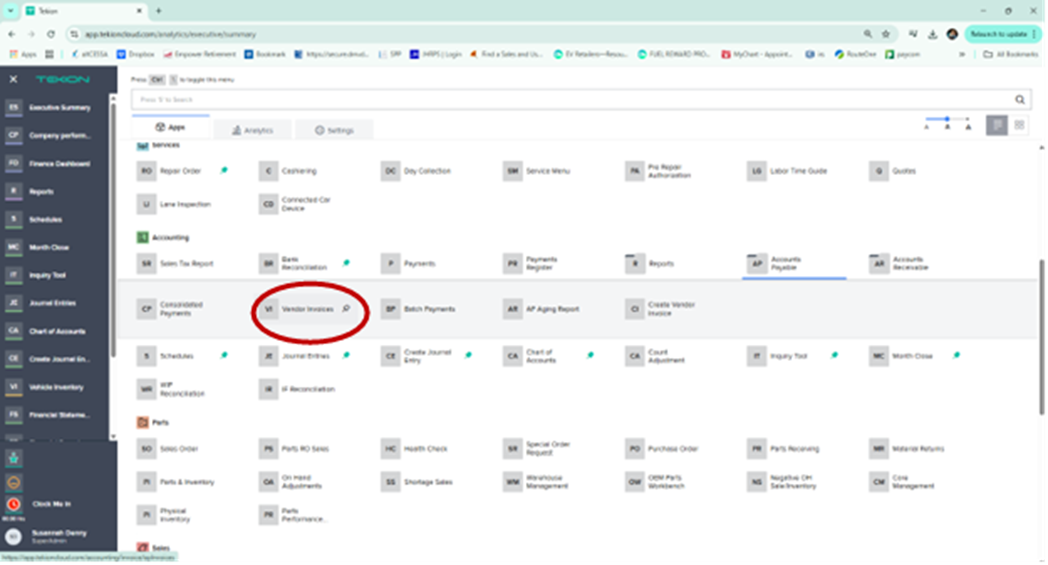
2.1 Click the waffle menu in the top-left corner of Tekion.

2.2 Go to the Accounts Payable folder and select Vendor Invoices.
This screen will allow you to see PRE-INVOICED invoices, posted in accounting, not paid invoices OPEN, as well as VOIDED or CLOSED invoices.

Part 1 – Filtering Open Invoices
1.1 On this screen, we will focus on the “OPEN” invoices.
Filter the OPEN status to display invoices that have been posted but are still unpaid and awaiting check issuance. Once selected, it will show all the invoices that were posted.
Part 2 – Selecting Multiple Vendors
2.1 From here, we will search for & focus on MULTIPLE Vendors - This can be used when you have multiple checks to issue in 1 day, an alternative to creating a Consolidated Payment. - Starting in the Vendor Invoices screen

Part 3 – Validate Account Balance
3.1 These posted invoices should match the vendors on the tracker that were posted for that period to be paid.
Once you have compared what we have posted to what their statement shows, and the totals match, it is time to cut a check.
3.2 Once we confirm that the posted invoices match the statement that they’ve sent, we can proceed to payment for us to settle the balance due. Please see screenshot below – OK TO PAY which means the balance are the same “TEKION INV vs STATEMENT”
Part 4 – Create Batch Payment
4.1 You will select all vendors who are ready for checks to be issued, this can include all Direct Pays and any balanced (ready to pay) statements.


4.2 To validate and confirm all Vendors Open Invoices - Press the triangle on the left side of the vendor’s name & it will drop down all the “open” invoices ready to pay this vendor.

4.3 If you have a statement that is ready to be paid, but there is more posted in Tekion than what’s on the statement, press the drop-down arrow on the vendor name and select the specific invoices you wish to pay.

4.4 Once all the vendors and invoices are selected to be paid, you will hover over the “Bulk Action” drop down found at the top right corner of the Vendor Invoices screen. You are going to click CREATE BATCH


It will then bring up another screen. Here you will name your batch and confirm the vendors/invoices being paid.
Part 5 – Processing Batch Payment
5.1 Processing check payments require additional verification steps to ensure that all check payments are handled in a secure, timely, and compliant to maintain proper internal controls when processing checks. Check the conditions below and apply necessary steps before issuing checks.
5.2 It will then bring up another screen. Here you will name your batch and confirm the vendors/invoices being paid.
The name of your batch will always be the date you are issuing the payment

5.3 Once you have named your batch Example “8-12-2025” and verified all the selected invoices (if you selected one in error, you can unselect it here), you will press Create Batch. Doing this will open-up another screen

5.4 Here you will verify all “Preferred Payment Method” are CHECKS (if any say EFT, flag it as a HOLD and email the DAC and Controller to have them fixed the payment method)

5.5 You will press the blue “Process Payments” button on the top right corner of this screen

5.6 Once you press this button a confirmation pop up will appear – Click YES

Finish.
